Buzz is better on the App Store. Get a Mac-native version of Buzz with a cleaner look, audio playback, drag-and-drop import, transcript editing, search, and much more.
 ## Features - Import audio and video files and export transcripts to TXT, SRT, and VTT ([Demo](https://www.loom.com/share/cf263b099ac3481082bb56d19b7c87fe)) - Transcription and translation from your computer's microphones to text (Resource-intensive and may not be real-time, [Demo](https://www.loom.com/share/564b753eb4d44b55b985b8abd26b55f7)) - Supports [Whisper](https://github.com/openai/whisper#available-models-and-languages), [Whisper.cpp](https://github.com/ggerganov/whisper.cpp), [Faster Whisper](https://github.com/guillaumekln/faster-whisper), [Whisper-compatible Hugging Face models](https://huggingface.co/models?other=whisper), and the [OpenAI Whisper API](https://platform.openai.com/docs/api-reference/introduction) - [Command-Line Interface](#command-line-interface) - Available on Mac, Windows, and Linux ## Installation To install Buzz, download the [latest version](https://github.com/chidiwilliams/buzz/releases/latest) for your operating system. Buzz is available on **Mac**, **Windows**, and **Linux**. ### Mac (macOS 11.7 and later) - Install via [brew](https://brew.sh/): ```shell brew install --cask buzz ``` Alternatively, download and run the `Buzz-x.y.z.dmg` file. ### Windows (Windows 10 and later) - Download and run the `Buzz-x.y.z.exe` file. ### Linux (Ubuntu 20.04 and later) - Install dependencies: ```shell sudo apt-get install libportaudio2 ``` - Download and extract the `Buzz-x.y.z-unix.tar.gz` file ## How to use ### File import To import a file: - Click Import Media File on the File menu (or the '+' icon on the toolbar, or **Command/Ctrl + O**). - Choose an audio or video file. - Select a task, language, and the model settings. - Click Run. - When the transcription status shows 'Completed', double-click on the row (or select the row and click the '⤢' icon) to open the transcription. | Field | Options | Default | Description | |--------------------|---------------------|---------|----------------------------------------------------------------------------------------------------------------------------------------------------------| | Export As | "TXT", "SRT", "VTT" | "TXT" | Export file format | | Word-Level Timings | Off / On | Off | If checked, the transcription will generate a separate subtitle line for each word in the audio. Enabled only when "Export As" is set to "SRT" or "VTT". | (See the [Live Recording section](#live-recording) for more information about the task, language, and quality settings.) [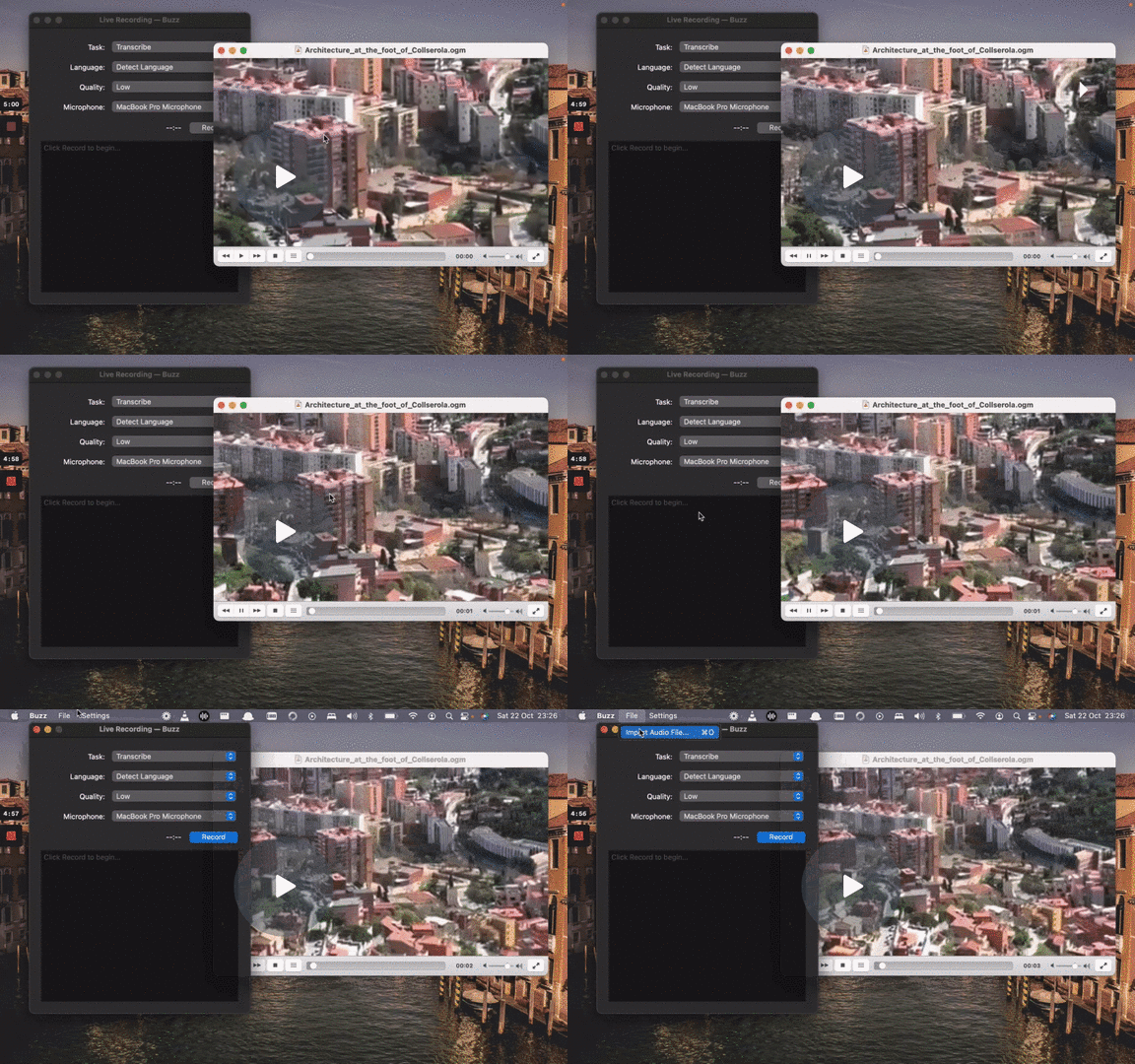](https://www.loom.com/share/cf263b099ac3481082bb56d19b7c87fe 'Media File Import on Buzz') ### Live Recording To start a live recording: - Select a recording task, language, quality, and microphone. - Click Record. > **Note:** Transcribing audio using the default Whisper model is resource-intensive. Consider using the Whisper.cpp > Tiny model to get real-time performance. | Field | Options | Default | Description | |------------|------------------------------------------------------------------------------------------------------------------------------------------|-----------------------------|-------------------------------------------------------------------------------------------------------------------------------------------------------------------------------------------------------------------------------------------------------------------------------------------------------------------------------------------------------------------------------------------------------------------------------------------------------| | Task | "Transcribe", "Translate" | "Transcribe" | "Transcribe" converts the input audio into text in the selected language, while "Translate" converts it into text in English. | | Language | See [Whisper's documentation](https://github.com/openai/whisper#available-models-and-languages) for the full list of supported languages | "Detect Language" | "Detect Language" will try to detect the spoken language in the audio based on the first few seconds. However, selecting a language is recommended (if known) as it will improve transcription quality in many cases. | | Quality | "Very Low", "Low", "Medium", "High" | "Very Low" | The transcription quality determines the Whisper model used for transcription. "Very Low" uses the "tiny" model; "Low" uses the "base" model; "Medium" uses the "small" model; and "High" uses the "medium" model. The larger models produce higher-quality transcriptions, but require more system resources. See [Whisper's documentation](https://github.com/openai/whisper#available-models-and-languages) for more information about the models. | | Microphone | [Available system microphones] | [Default system microphone] | Microphone for recording input audio. | [](https://www.loom.com/share/564b753eb4d44b55b985b8abd26b55f7 'Live Recording on Buzz') ### Record audio playing from computer To record audio playing from an application on your computer, you may install an audio loopback driver (a program that lets you create virtual audio devices). The rest of this guide will use [BlackHole](https://github.com/ExistentialAudio/BlackHole) on Mac, but you can use other alternatives for your operating system ( see [LoopBeAudio](https://nerds.de/en/loopbeaudio.html), [LoopBack](https://rogueamoeba.com/loopback/), and [Virtual Audio Cable](https://vac.muzychenko.net/en/)). 1. Install [BlackHole via Homebrew](https://github.com/ExistentialAudio/BlackHole#option-2-install-via-homebrew) ```shell brew install blackhole-2ch ``` 2. Open Audio MIDI Setup from Spotlight or from `/Applications/Utilities/Audio Midi Setup.app`. 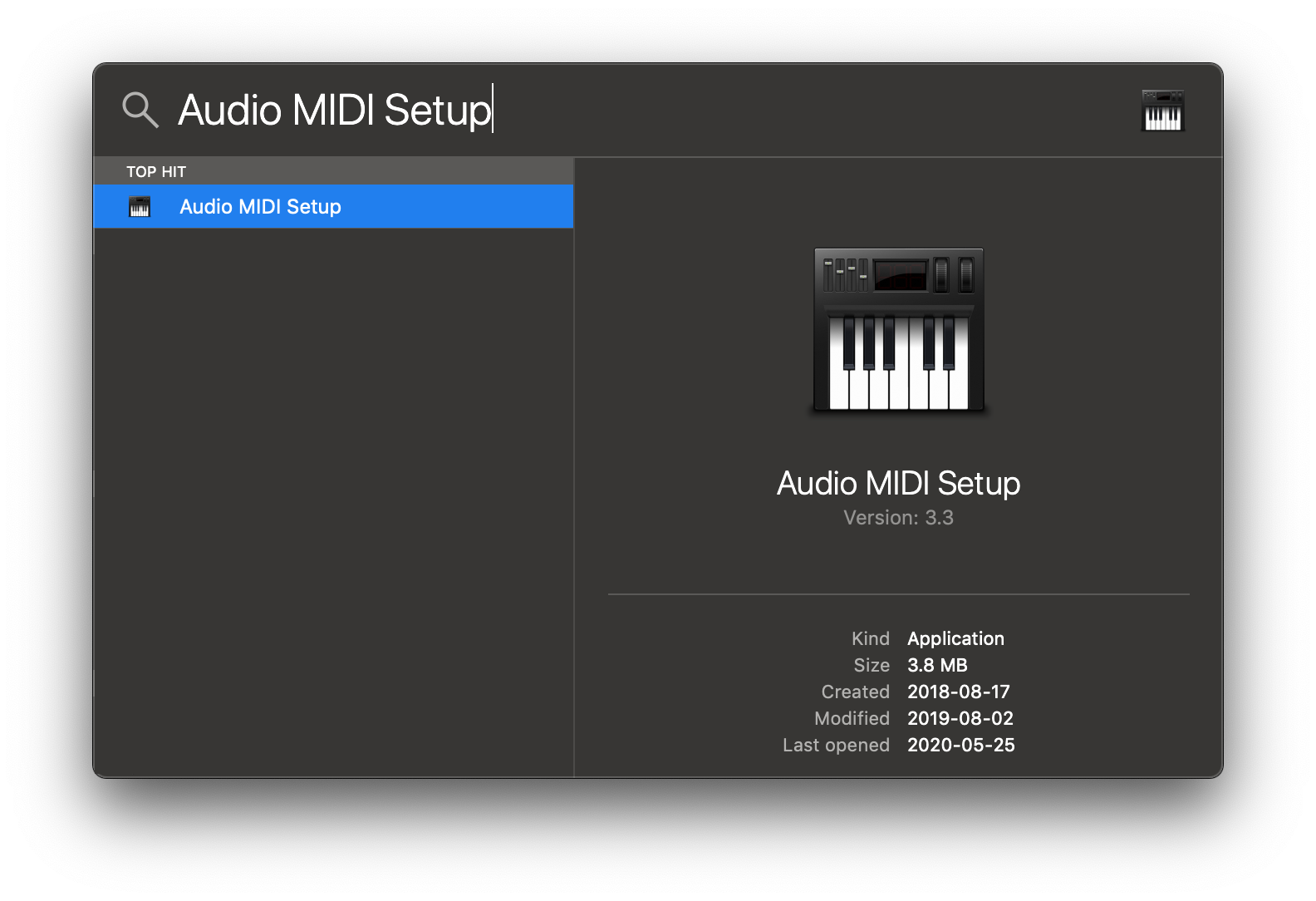 3. Click the '+' icon at the lower left corner and select 'Create Multi-Output Device'.  4. Add your default speaker and BlackHole to the multi-output device. 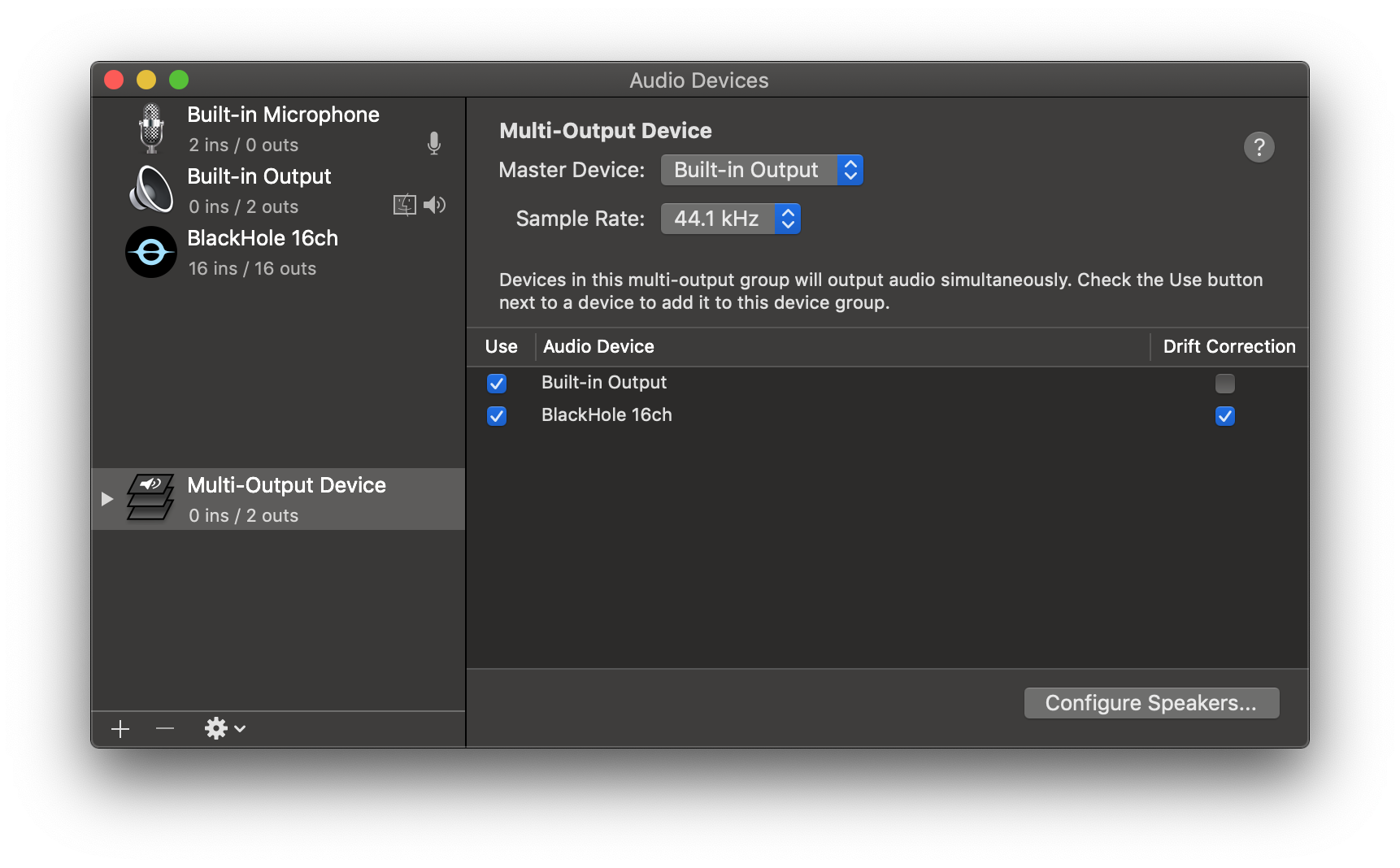 5. Select this multi-output device as your speaker (application or system-wide) to play audio into BlackHole. 6. Open Buzz, select BlackHole as your microphone, and record as before to see transcriptions from the audio playing through BlackHole. ## Command-Line Interface ### `add` Start a new transcription task Examples: ```shell # Translate two MP3 files from French to English using OpenAI Whisper API buzz add --task translate --language fr --model-type openaiapi /Users/user/Downloads/1b3b03e4-8db5-ea2c-ace5-b71ff32e3304.mp3 /Users/user/Downloads/koaf9083k1lkpsfdi0.mp3 # Transcribe an MP4 using Whisper.cpp "small" model and immediately export to SRT and VTT files buzz add --task transcribe --model-type whispercpp --model-size small --prompt "My initial prompt" --srt --vtt /Users/user/Downloads/buzz/1b3b03e4-8db5-ea2c-ace5-b71ff32e3304.mp4 ``` Run `buzz add --help` to see all available options. ## Build To build/run Buzz locally from source, first install the requirements: 1. [Poetry](https://python-poetry.org/docs/#installing-with-the-official-installer) Then: 1. Clone the repository ```shell git clone --recurse-submodules https://github.com/chidiwilliams/buzz ``` 2. Install the project dependencies. ```shell poetry install ``` 3. (Optional) To use Whisper.cpp inference, run: ```shell make buzz/whisper_cpp.py ``` 4. (Optional) To compile the translations, run: ```shell make translation_mo ``` 5. Finally, run the app with: ```shell poetry run python main.py ``` Or build with: ```shell poetry run pyinstaller --noconfirm Buzz.spec ``` ## FAQ 1. **Where are the models stored?** The Whisper models are stored in `~/.cache/whisper`. The Whisper.cpp models are stored in `~/Library/Caches/Buzz` ( Mac OS), `~/.cache/Buzz` (Unix), or `C:\Users\Buzz is better on the App Store. Get a Mac-native version of Buzz with a cleaner look, audio playback, drag-and-drop import, transcript editing, search, and much more.