No description
- Python 57%
- HTML 39.9%
- JavaScript 1.3%
- CSS 1.1%
- Dockerfile 0.5%
- Other 0.1%
| configs | ||
| docker | ||
| docker-test | ||
| docs | ||
| migrations | ||
| powerdnsadmin | ||
| tests | ||
| .dockerignore | ||
| .gitattributes | ||
| .gitignore | ||
| .lgtm.yml | ||
| .travis.yml | ||
| .yarnrc | ||
| docker-compose-test.yml | ||
| docker-compose.yml | ||
| LICENSE | ||
| package.json | ||
| README.md | ||
| requirements.txt | ||
| run.py | ||
| update_zones.py | ||
| yarn.lock | ||

PowerDNS-Admin
A PowerDNS web interface with advanced features.



Features:
- Multiple domain management
- Domain template
- User management
- User access management based on domain
- User activity logging
- Support Local DB / SAML / LDAP / Active Directory user authentication
- Support Google / Github / Azure / OpenID OAuth
- Support Two-factor authentication (TOTP)
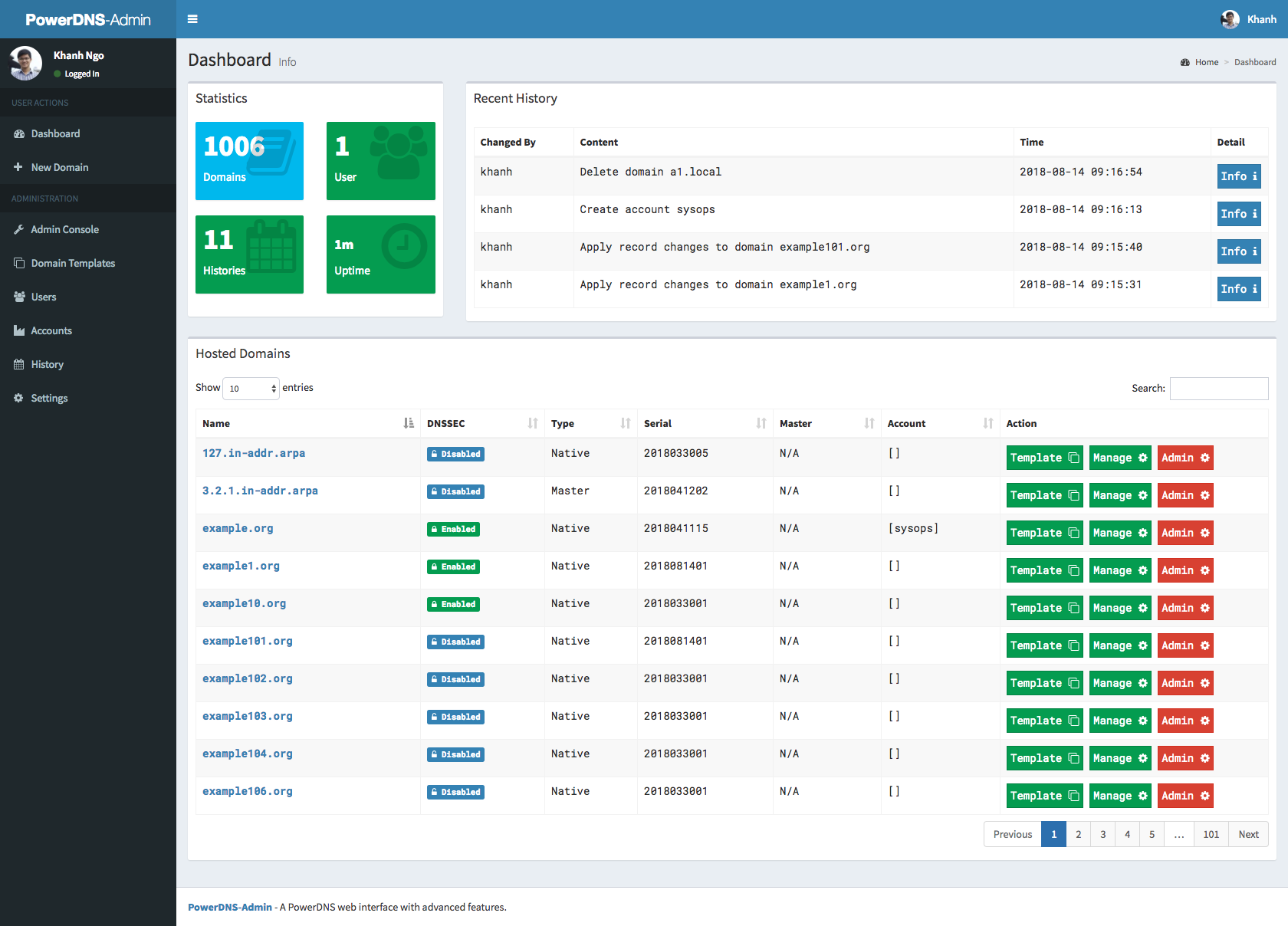
- Dashboard and pdns service statistics
- DynDNS 2 protocol support
- Edit IPv6 PTRs using IPv6 addresses directly (no more editing of literal addresses!)
- Limited API for manipulating zones and records
Running PowerDNS-Admin
There are several ways to run PowerDNS-Admin. Following is a simple way to start PowerDNS-Admin using Docker
Step 1: Update the configuration
Edit the docker-compose.yml file to update the database connection string in SQLALCHEMY_DATABASE_URI. Other environment variables are mentioned in the legal_envvars.
To use docker secret feature it is possible to append _FILE to the environment variables and point to a file with the value stored in it.
Step 2: Start docker container
$ docker-compose up
You can now access PowerDNS-Admin at url http://localhost:9191
NOTE: For other methods to run PowerDNS-Admin, please take look at WIKI pages.
Screenshots